

From beats to bops, Spotify keeps the tunes flowing with payment options as diverse as your playlists! Whether swiping your card, tapping with PayPal, or rocking out with gift cards, find your groove hassle-free. In this blog, I shared insights on Spotify Payment Method—discover how easy it is to stay tuned in, wherever your music takes you! And don’t forget to learn How to Clear Queue on Spotify to keep your beats playing smoothly.
Types of Spotify Payment Methods Used
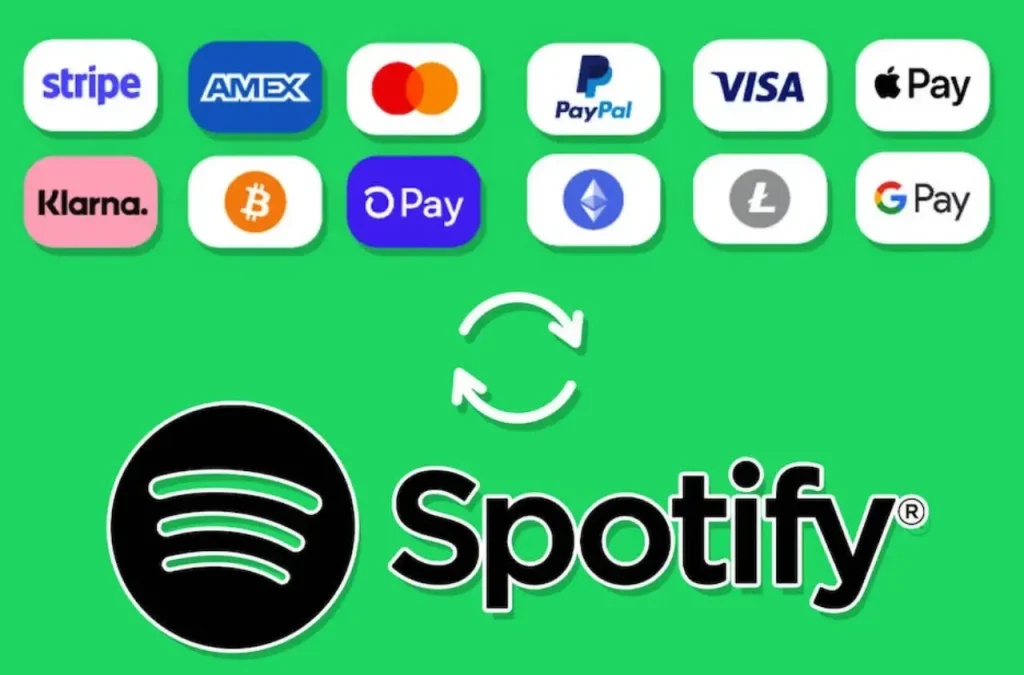
Spotify gives you several ways to pay for Premium: with Visa, MasterCard, American Express, PayPal, or gift cards.
Depending on where you are, you can also pay through your mobile carrier or set up direct debits with SEPA in Europe. Read about Spotify Premium Plans to learn more about Spotify Payment Method.
Discover Spotify Payment Method
Payment methods for Spotify Premium can be discovered through various options—
1. Credit or Debit Cards
Subscription payments can be securely made using major cards like Visa, MasterCard, American Express, or others.
2. PayPal
A convenient payment option is offered by PayPal, available globally in many regions.
3. Gift Cards
Spotify gift cards are redeemable for Premium subscriptions, perfect for gifts or personal enjoyment.
4. Mobile Payments
Payments can be processed through mobile carrier billing in select countries, ensuring seamless transactions.
5. Direct Debit (SEPA)
Direct debit options are available in certain European countries, making payments hassle-free.
6. Checking Availability
To find out about payment options in your area, visit Spotify’s website or app. It’s where you can discover the perfect way to keep your favorite tunes playing!
How do I Update My Spotify Payment Details?
To update or change your payment information—
1. Visit your account page.
2. Look for “Manage your plan” and click on “Update” next to your current payment method.
3. Enter your new payment details.
Please note: When you add a new payment method, some providers might charge a temporary authorization fee.
Your changes will apply from your next billing date.
How do I Handle Spotify Payments Through a Partner?
If another company manages your plan (like your phone or internet provider), they handle your payments. Contact them for any payment issues.
To find your provider or contact them
1. Visit your account page.
2. Click on “Manage your plan” under Account.
3. Look for the contact link under Payment.
To update your payment details
1. Go to your partner’s website to cancel your current Premium plan.
Tip: You can find their contact info on your account page under Payment.
2. Once your Spotify account switches to free, you can sign up for any Premium plan again.
How Do I Manage Spotify Saved Payment Cards?
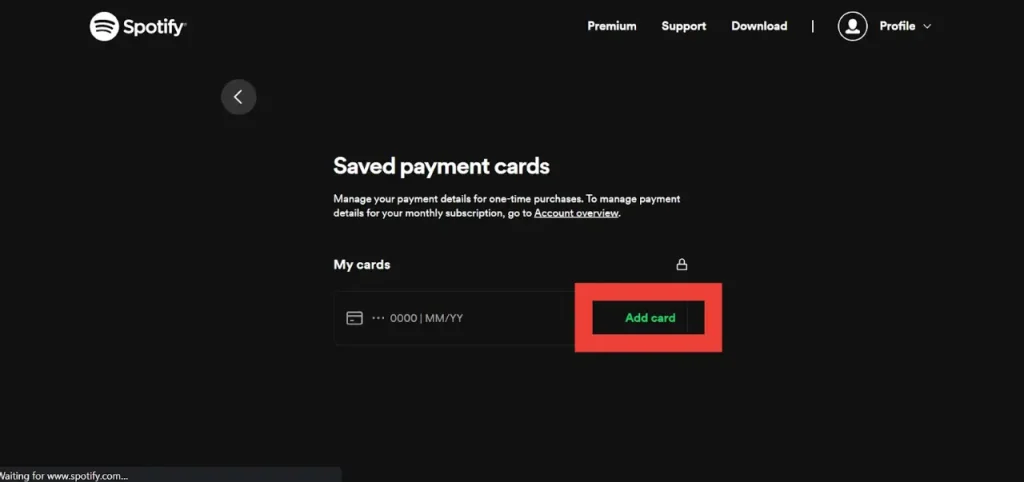
You can save and manage your payment info for future purchases. Remember, saved details won’t automatically update your current plan.
To update your payment info, go to “Manage your plan” to keep everything accurate and up to date.
How Do I Add a Payment Card?
Here’s how to save your card details for future use—
1. Visit your account page.
2. Navigate to the Payment section and choose Saved payment cards.
3. Click on Add card.
4. Enter your card details and choose to save the card for future purchases.
5. Finally, click Save to complete the process.
How Do I Remove a Payment Card?
Here are the steps to remove a saved card—
1. Visit your account page.
2. Navigate to Payment and select Saved Payment Cards.
3. Locate the card you wish to remove and click on it.
4. Choose Remove saved card.
5. Click Remove to confirm the removal.
Resolving Issues With Spotify Premium Subscriptions
Resolve issues with Spotify Premium subscriptions effectively—
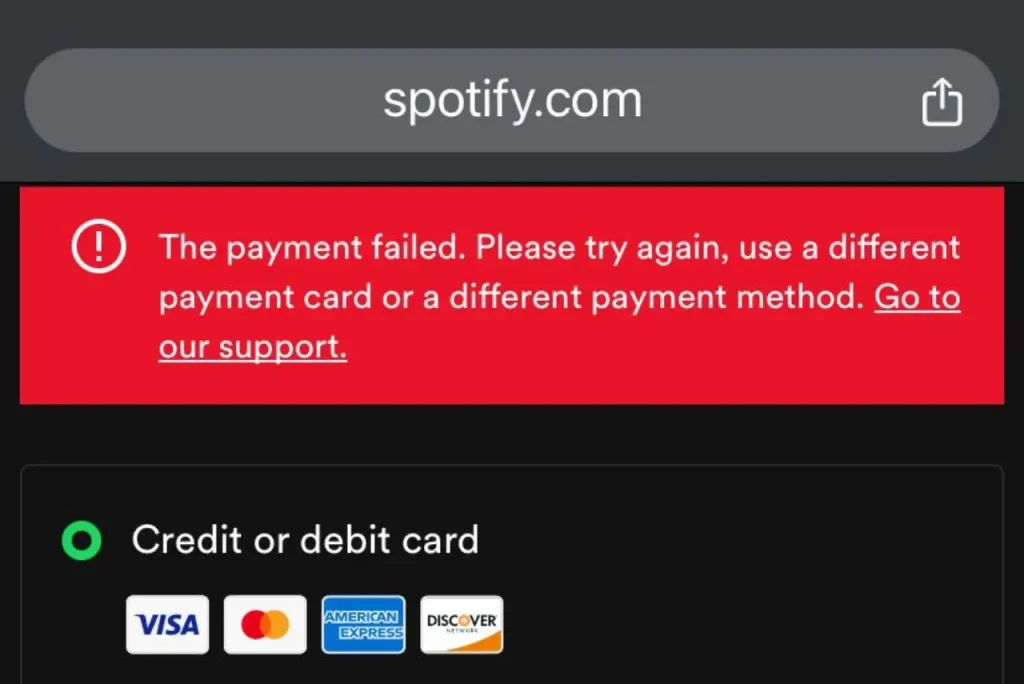
Troubleshooting the “Spotify Payment Failed” Issue
Troubleshooting the “Spotify Payment Failed” issue involves identifying and resolving common payment-related problems.
1. Check Your Payment Method Details
Make sure your debit or credit card information is correct and up-to-date.
2. Contact Your Bank or Financial Institution
Reach out to your bank to ensure online transactions are authorized for your payment method.
3. Ensure a Stable Internet Connection
Verify that your internet connection is strong and stable before proceeding.
4. Clear the Cache of Your Spotify App
Remove any stored data in your Spotify app to fix potential bugs causing payment issues.
Spotify Payment Method’s Subscription and Account Settings
Addressing Subscription and Account Settings involves managing and adjusting your Spotify account to ensure smooth service and subscription management.
1. Match Your Payment Method with Your Country
Ensure that the country of your payment method matches where your device is located to prevent problems.
2. Update Your Account Location
Adjust your account settings to reflect your current country or where your payment method is registered.
3. Create an Account for a Different Country
Visit Spotify’s website in your desired country using your web browser to create a location-specific account.
4. Manage Your Device Settings
Turn off VPN connections and adjust your Apple ID settings under “Media and Purchases” to update your country or region.
Making these adjustments will ensure you can enjoy Spotify Premium services without interruptions, and to learn more, consider checking out Spotify’s payment failed troubleshooting on its official website.
Video Guide To Update Spotify Payment Method?
Follow these steps to know how you can update your Spotify Payment Method—
Steps To Update Spotify Payment Method via Web Browser
To change how you pay for Spotify, follow these steps on a web browser—
1. Sign in to Your Spotify Account
Open Spotify in your web browser and log in to your account.
2. Access Your Account Settings
Click on the account tab at the top right corner, just below your profile picture.
3. Start Updating Your Payment Method
Scroll down to find your current payment method and click the “Update” button.
4. Choose a New Way to Pay
Pick your new payment method from options like credit cards, debit cards, or PayPal.
5. Enter Your Payment Details
Follow the prompts to enter the details needed for your new payment method.
6. Complete the Update
Click “Change payment method” to finish the process.
How To Find Your Spotify Username in Mobile App
To find your Spotify username using the mobile app—
1. Go to Your Profile Settings
Tap the gear-shaped settings button at the top right of the app.
2. Open Your Profile
Tap the view profile arrow, then select the three dots next to “Edit.”
3. Share Your Profile
Choose “Copy link” from the sharing menu.
4. Locate Your Username
Paste the link into the search bar. Your username is the number after “user/” and before the question mark.
These steps help you manage your Spotify account and update how you pay with ease.
Conclusion For Spotify Payment Method
Taking charge of your Spotify payment details is crucial for enjoying uninterrupted Premium services.
Whether you’re updating card information, fixing subscription issues, or considering PayPal or gift cards, staying informed is essential.
Double-check your payment details, keep in touch with your bank for quick solutions, and use troubleshooting tools as necessary.
This ensures a smooth Spotify experience that fits your preferences perfectly.
Here today, I provided you with insights on Spotify Payment Method. Share these tips with friends and feel free to drop your thoughts in the comments below!
FAQ For Spotify Payment Method
Log into your account, go to settings, find your current payment method, click “Update,” choose a new method (like credit/debit card or PayPal), enter your details, and save them.
Yes, you can use PayPal by selecting it in your settings when you update your payment method.
Double-check your payment details, ensure you have enough funds, update your method in settings, or reach out to Spotify support for assistance.
Spotify primarily accepts credit/debit cards and PayPal, but availability may vary depending on where you are.
Go to app settings, view your profile, tap “Edit,” choose share, copy the link, and find your username after “user/”.
You are reading this blog on haccker.
