

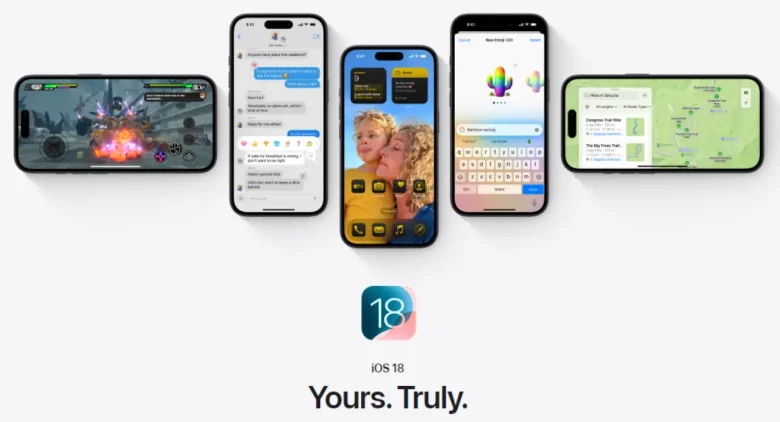
Find your favourite photos on iOS 18 with simple steps. Whether looking back on special moments or sharing your best snapshots, the Photos app has great tools to help you easily access your top images. You can use the improved Favourites album and smart search options to curate your collection effortlessly. Furthermore, you can check out the Apple Sports App too. Let’s explore how to get the most out of the features of the new Photos App in iOS 18!
What Is iOS 18 Photos App?
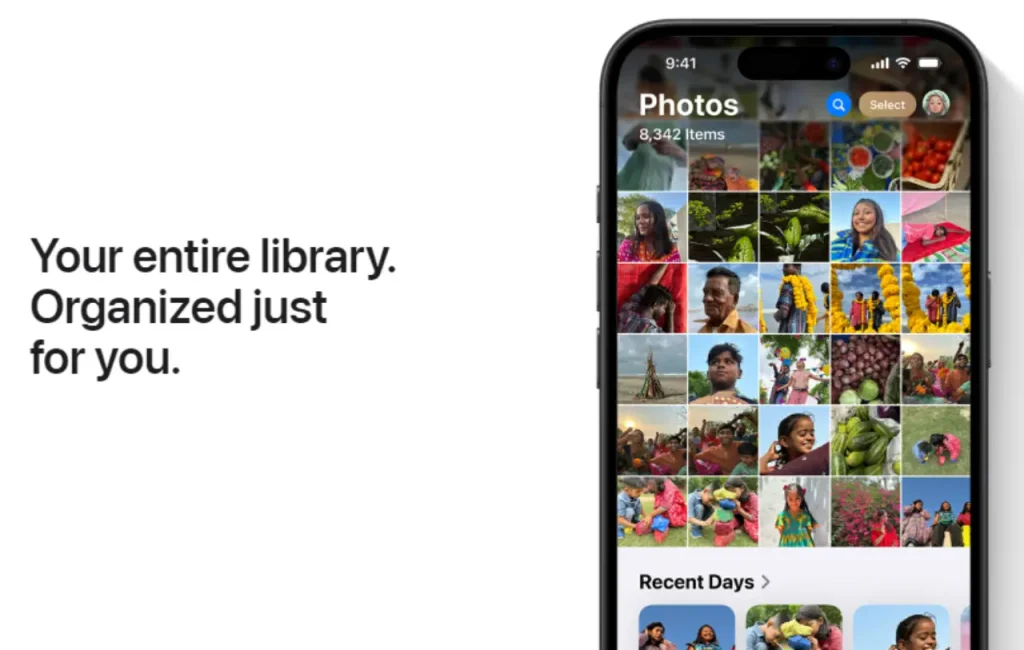
The new Photos app in iOS 18 makes it super easy to keep your photo library organized and find your pictures quickly. With its lovely and familiar design, everything you need is just a tap away, letting you spend less time searching and more time enjoying your memories.
This updated app improves capturing, organising, and sharing your favourite moments.
With features like better sorting options, smarter search tools, and an easy-to-use Favourites album, you can find and enjoy your best images without hassle.
Whether you’re taking casual snapshots or getting serious about photography, the Photos app in iOS 18 is here to make your experience better and help you relive those special moments effortlessly. Let’s check out what it has to offer!
Great Features of the iOS 18 Photos App
The redesigned Photos app in iOS 18 has sparked a lot of conversation with its fresh look and new features. Here’s a quick overview of what’s changed!
1. Unified Design
iOS 18 makes things simpler by bringing everything into one view—no more separate tabs. When you open the app, you’ll see your Photo Library right away. You can scroll down for more content instead of having to tap around.
The grid displays about 30 images at once, and you can easily browse options like years and months with just a quick swipe.
2. Filters and Sorting
In the Library View, you can sort and filter your photos by recent additions or when they were taken. Options include Favourites, Videos, and Screenshots. Plus, you can zoom in or out and adjust the aspect ratio.
3. Collections and Customization
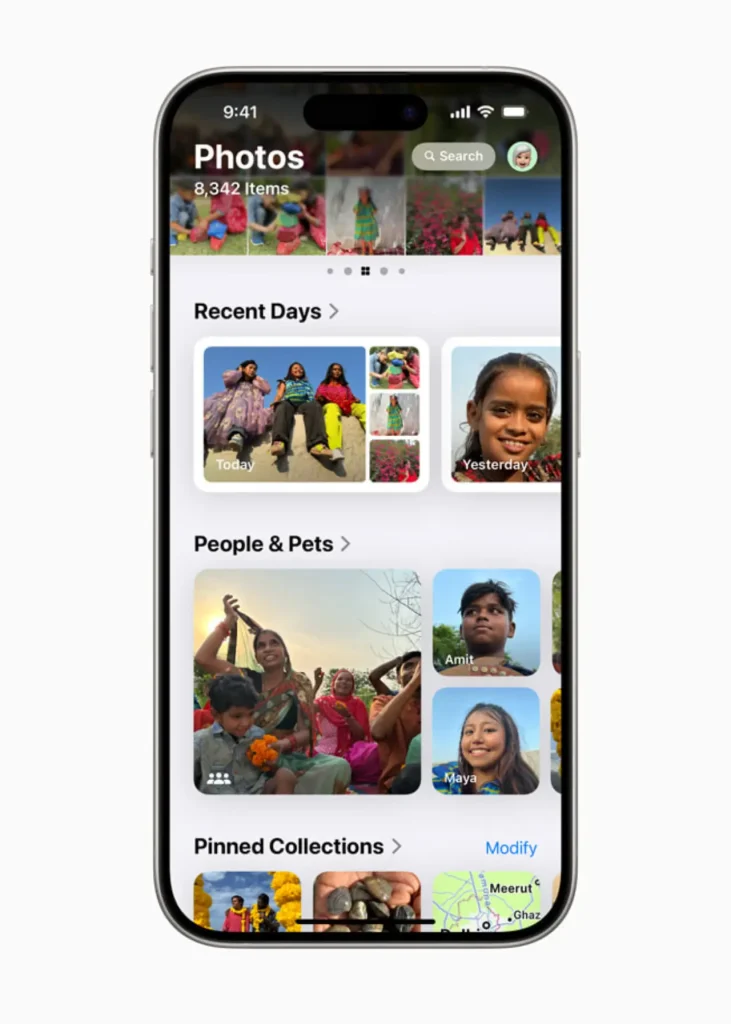
The app now emphasizes Collections, which group your photos by themes or events. Key Collections include Recent Days, Albums, People and Pets, Memories, and Shared Albums. You can also rearrange these Collections for quick access.
4. Pinned Collections
Pinned Collections let you easily reach your favourite albums and media types—great for frequently used items like screenshots or videos.
5. Photo Editing
Editing your photos is easy. Just tap the three slider bars icon to access the editing tools, which are all in familiar spots.
6. Utilities
The Utilities section has grown to include more types of images, such as hidden images and duplicates, making it easier to keep your library organized.
7. Search Improvements
The search feature has gotten a major upgrade, allowing you to find photos using natural language. You can search for phrases like “Me with food” or “Cats outside,” and even look for specific parts of videos!
8. Memory Maker
Memory Maker lets you create custom Memory Movies from your photos and videos using a simple text prompt. You can personalize these memories and share them easily.
9. Clean-Up and Image Playground Integration
Coming later this year, the Clean Up feature will help you remove unwanted background objects from your photos. Plus, the new Image Playground app will let you generate images based on text prompts that feature your friends and family.
This overview highlights how iOS 18 is making your photo experience better, helping you capture, organize, and share your favourite moments with ease!
Exploring Pinned Collections in the iOS 18 Photos App
Let’s take a closer look at the updated iOS 18 Photos app and see how you can easily manage and enjoy your Pinned Collections!
What Are Pinned Collections For Photos In iOS 18?
In the new Photos app on iOS 18, there’s a useful feature called Pinned Collections. It acts like a shortcut bar, giving you quick access to the places you check out most often. You can easily find links to your favourite pictures and even see a map of where your photos were taken.
Accessing and Managing Pinned Collections
When you tap on the Pinned Collections title, all your pinned spots show up in one easy place. You can customize this by choosing what you want to pin.
Just click Modify, and a list of options will pop up. For example, if you tap the Plus sign next to Selfies, that album gets added to your pinned list in no time.
Adding Custom Albums For Photos In iOS 18
You can also add any photo album or group of photos as a shortcut. If you want to include an album from your honeymoon at Disney’s Hollywood Studios, just find it, add it to your list, and drag it around to rearrange things.
Once you’re done editing, both your Selfies album and the Hollywood Studios album will be right there in your pinned shortcuts.
This feature helps you personalize the Photos app to showcase what matters most to you, making it super easy to access your favourite memories whenever you want. With iOS 18, there are plenty of new features to explore, opening up exciting possibilities!
Steps to Find Favourite Photos on iOS 18
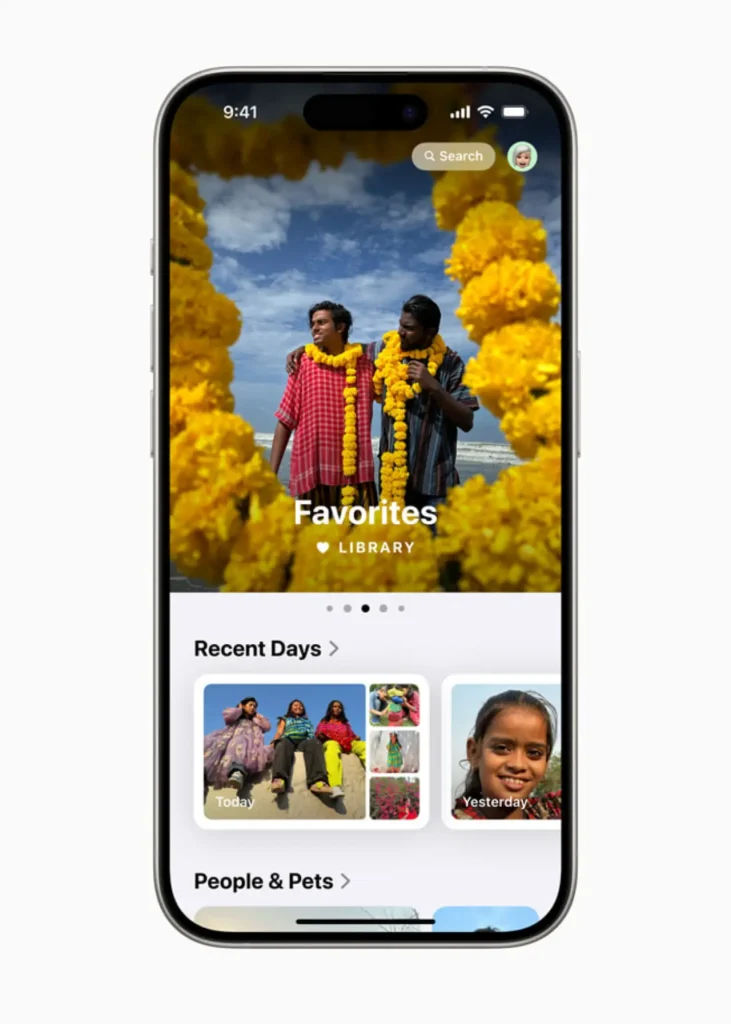
Want to quickly find the photos you love on your iPhone? Here’s a simple guide to help you check your favorites.
Step 1: Open the Photos App in iOS 18
Start by tapping on the Photos app. This is where all your pictures are stored, so it’s the first place to go.
Step 2: Go to the Favourites Album
Scroll down until you see the Albums section. Look for Favourites. If you don’t see it right away, just tap on Albums to see the full list.
Step 3: View Your Favourite Photos
Once you click on Favourites, you’ll see all the photos you’ve marked as your favourites. This makes it super easy to find your most cherished images!
Step 4: Using Pinned Collections For Photos In iOS 18
If you’ve pinned any collections, you can also access your favourites there for quick viewing.
Step 5: Remove Photos from Favourites
If you want to take a photo out of your favourites, tap Select in the top right corner. Choose the images you want to un-favourite.
Then, tap the three dots in the top right and select Unfavourite. You can also delete photos from this menu if you’d like.
By following these steps, you can easily manage your favourite photos on your iPhone!
Video Guide To Find Favourite Photos On iOS 18
Conclusion
In a nutshell, finding your favourite photos on iOS 18 can be super easy! By customizing the Photos app to highlight pin collections, media types, and utilities, you’ll make it much more organized and enjoyable to use.
Don’t forget to pin key sections like Favourites, screenshots, and albums so you can quickly access the memories that matter most.
If you found this guide useful, feel free to like and share it with your friends! And if you have any questions or need more assistance, just leave a comment—I’d love to hear from you!
FAQs
To find your favourite photos, open the Photos app and go to the Albums tab. Look for the Favourites album, which stores all the photos you’ve marked as favourites.
Yes! You can customize the Photos app by tapping Customize in the settings. From there, you can choose which sections to highlight, like Pin Collections, Media Types, and Utilities.
Pinning collections helps you focus on specific categories like Favourites, Screenshots, and Albums. This makes it easier to find the photos you care about.
Definitely! You can create custom albums to sort your photos by events, people, or themes. This keeps everything neat and easy to find.
If you’re having trouble, first make sure your iOS is up to date. You can also use the search feature in the Photos app to look for specific dates, locations, or people.
You are reading this blog on haccker.
