

Pooping up with How to change language in Once Human? You are at the right place to know! Once Human, the gripping survival game set in a rich post-apocalyptic world, has captured the hearts of gamers everywhere.
Playing in your preferred language can make your experience more immersive and enjoyable.
This guide will help you change the language in Once Human, provide a game review, cover system requirements, and explore language options on Steam and PC.
How To Change Language in Once Human Game
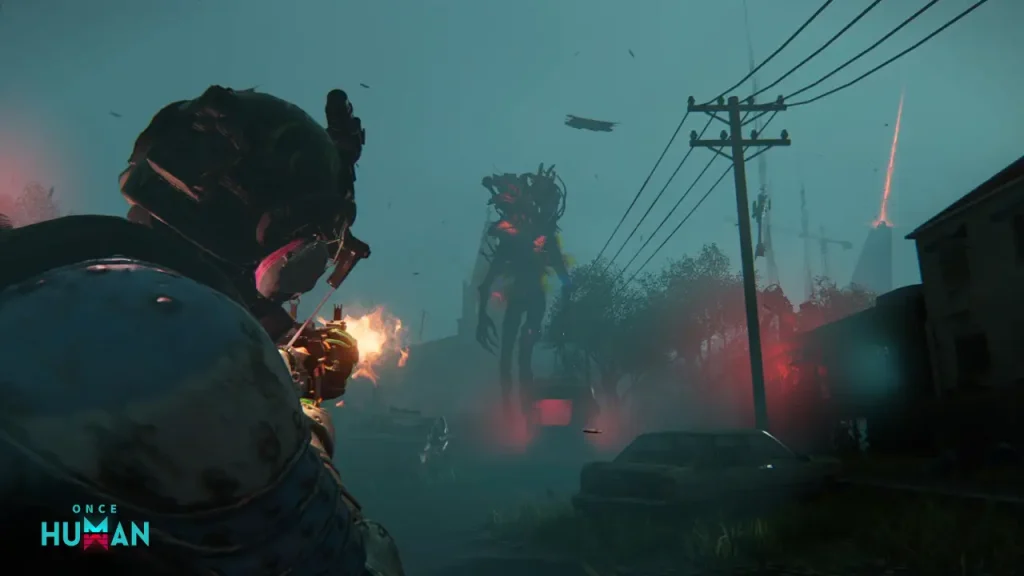
Navigating through intense battles or diving into Once Human’s intricate storyline is much more rewarding when you understand every instruction and dialogue. Here’s how to change the language in Once Human:
1. Launch Once Human, the First Step to Change Language
Start the game and go to the main menu.
2. Navigate to Settings
Look for the settings or options menu, usually shown with a gear icon.
3. Select Language Settings
Find the language option within the settings.
4. Select Language to Change in Once Human
Pick the language you’re most comfortable with from the list.
5. Save the Change in Language Of Once Human
Confirm your choice and save the changes. Your game will now display text and dialogues in your chosen language.
Now boom! You did change the language on Once Human!
Video Guide To Change Language in Once Human Game
Change Language of Once Human Game on Steam
Change the language for Once Human on Steam, it’s a breeze. Here’s how you can do it:
- Open Steam: Launch the Steam software on your PC.
- Go to Library: Navigate to your game library where Once Human is located.
- Right-click on Once Human: Click the right mouse button on the game’s icon.
- Select Properties: From the menu that appears, choose Properties.
- Select Language: Inside the properties window, click on the Language tab.
- Choose Your Language: From the drop-down menu, select the language you prefer.
- Update and Restart: Steam will update the game to use the new language. Restart Once Human to apply the changes.
Once Human Game System Requirements
Before you dive into the world of Once Human, make sure your PC is ready to handle the game’s requirements. Here’s what you’ll need:
Minimum Requirements
- OS: Windows 10 (64-bit)
- CPU: AMD FX-6300 or Intel Core i5-4460
- Memory: 8 GB RAM
- Graphics: NVIDIA GeForce GTX 760 or AMD Radeon R7 260x
- DirectX: Version 11
- Storage: 50 GB available space
Recommended Requirements
- OS: Windows 10 (64-bit)
- Processor: Intel Core i7-7700K or AMD Ryzen 5 1600
- Memory: 16 GB RAM
- Pictures: Radeon RX 580 from AMD or GeForce GTX 1060 6GB from NVIDIA
- DirectX: Version 11
- Storage: 50 GB available space
Get your setup ready, ensure your PC meets these specs, and prepare to fully immerse yourself in the gripping world of Once Human without any performance issues!
Once Human Game Review
Step into the captivating world of Once Human, an MMORPG set in a post-apocalyptic landscape that draws players in with its gripping storyline, immersive gameplay, and stunning visuals.
Graphics and Visuals
Once Human’s graphics are breathtaking, bringing its eerie landscapes to life with detailed environments and realistic character designs that make every moment unforgettable.
Gameplay and Mechanics
This game blends survival instincts with deep RPG elements, offering a wide range of activities from crafting and building to intense combat. The controls are intuitive, ensuring a smooth and immersive experience throughout.
Storyline
Dive into a narrative filled with suspense and unexpected twists, enriched by a deep lore that encourages exploration and a deeper understanding of the game’s world.
Multiplayer Experience
Enjoy the dynamic multiplayer mode of Once Human, where you can form alliances, trade resources, and compete with others. Every interaction is made more exciting and unpredictable by the social component.
Pros
- Stunning visuals that transport you to a hauntingly beautiful world.
- A captivating storyline woven with rich lore.
- Smooth gameplay mechanics that enhance immersion.
- Robust multiplayer features that build community and competition.
Cons
- Beginners may find the game challenging initially due to its complexity.
- Some occasional bugs and glitches like Network Error in Once Human can interrupt gameplay.
Using Game Language Translators on PC, Alternative To Change The Language in Once Human
When your favorite games aren’t in your language, don’t worry!
Popular Tools
- Google Translate: This versatile tool does more than just translate text—it can even translate on-screen dialogue using your smartphone’s camera, giving you real-time translations.
- DeepL: Known for its accurate translations, DeepL is great for handling complex in-game text and dialogue with precision.
- Translation Patches: Explore community-made translation patches designed for specific games. You can download and apply these patches to enjoy gaming in your preferred language, thanks to passionate fans.
These clever solutions ensure that no game world is beyond your linguistic grasp.
Conclusion
And now you’ve got the simple ways to change the language in Once Human and this can significantly enrich your gaming adventure.
This guide equips you to change languages effortlessly, allowing you to dive deep into the game’s captivating universe.
Understanding the game’s system requirements and how to adjust languages on Steam or utilize translation tools can enhance your overall gaming experience.
Get ready to fully immerse yourself in the mesmerizing world of Once Human and enjoy every moment of your gaming journey.
FAQs
To change language on Once Human, follow:
1. Open the game and navigate to the home screen.
2. Select Settings.
3. Choose Language Preferences.
4. Select the language
5. Save the modifications.
No, if you change language in Once Human it will not have an impact on any other settings or your saved game progress.
Yes, gaming websites and forums devoted to Once Human frequently host translation patches or language assistance threads made by the community.
Yes, Once Human usually allows for different language support for spoken dialogue and subtitles, giving you even more customization options for your game experience.
Yes, you can use the identical procedures described in the tutorial to return to the original language or select a different one at any time. Just go back to the game’s settings and pick your favorite language.
You are reading this blog on haccker
