


Minecraft, the groundbreaking sandbox game that first graced our screens in 2009, has become a global phenomenon in the world of gaming. It’s a world where imagination knows no bounds, and one of the coolest ways players show off their creativity is through Minecraft (2009) game icons and banners.
These are more than simply in-game goods; they serve as your canvas to express yourself.
Whether you’re marking your territory, designing a faction emblem, or just adding a splash of personality to your world, Minecraft (2009) game icons and banners let you transform your blocky realm into a unique masterpiece.
In this blog, we’ll explore how to craft and customize these elements, so your designs can truly shine in the vast Minecraft universe.
What Are Minecraft (2009) Game Icons and Banners?
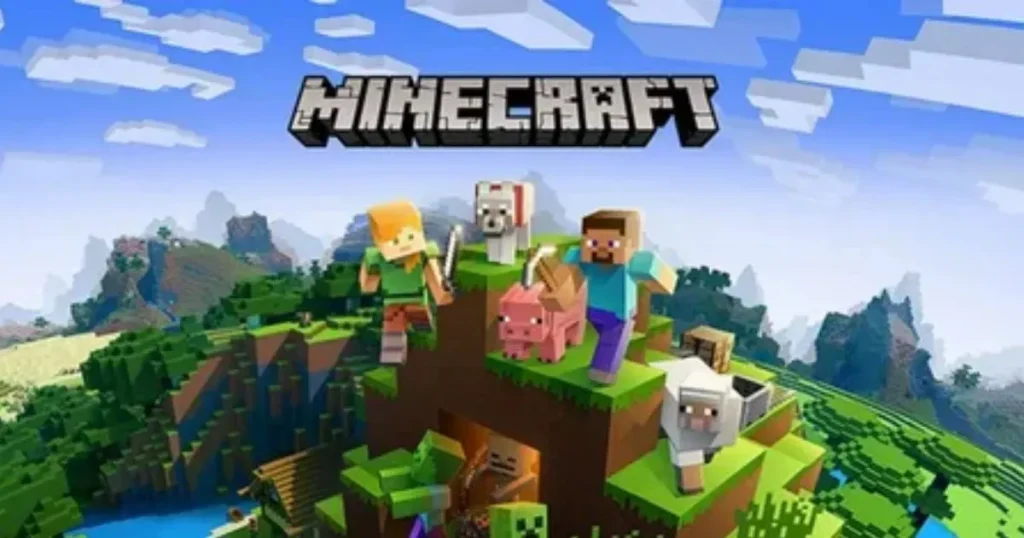
Here are the details about Minecraft game icons and banners:
1. Icons
In Minecraft, icons are tiny pixelated guides that help organize your inventory and crafting recipes. Representing items, blocks, and creatures, add visual flair and make navigation more intuitive.
These practical images enhance the fun of exploring Minecraft’s vast array of objects. Icons simplify and enrich your gameplay experience.
2. Banners
Banners in Minecraft add color and creativity to your world, becoming a favorite since their debut in version 1.8. Hang them on walls, floors, or shields, and customize them with dyes and patterns.
Whether decorating your castle, marking territory, or showcasing artistry, banners let you personalize your Minecraft experience.
Creating and Customizing Icons in Minecraft (2009) Game
Customizing icons in Minecraft is like giving your game a personal makeover.
1. Kick Off Your Custom Resource Pack
Open Minecraft and head to the “Resource Packs” section in the menu. Clicking “Open Resource Pack Folder” will create a new folder for your unique designs—this is where the magic begins!
2. Get Creative with Icons
- In your newly created resource pack folder, set up a path: `assets/minecraft/textures/item`.
- Find the default icon you want to change, or dive into your favorite image editor (like Photoshop or GIMP) and craft a brand-new icon.
- Save your masterpiece as a `.png` file, ensuring it has the same name as the original icon you’re replacing.
3. Bring Your Icons to Life
- Return to Minecraft, select your custom resource pack from the list, and click “Done.”
- Your personalized icons will now pop up in the game, adding a fresh and exciting twist to your Minecraft experience.
Designing Unique Banners

Here’s how to craft your very own unique banners:
1. Gather Your Supplies
First, gather your materials: wool and a stick. The wool will form the base color of your banner, and the stick will be the pole it hangs from. Don’t forget to collect some dyes too—they’re essential for adding vibrant colors and patterns to your banner.
2. Craft Your Basic Banner
Go to your craft table and become creative. Arrange six blocks of wool in the top two rows, then place a stick in the bottom middle slot. Voilà! You’ve crafted a basic banner, just waiting for your personal touch.
3. Unleash Your Creativity with Patterns
- Open up a loom and place your newly crafted banner inside. Add dyes and any pattern items you like (think cool things like creeper heads or enchanted golden apples) to start designing.
- Combine different patterns and colors to create a banner that is unique to you.
Popular Banner Designs
Looking for some banner design inspiration? Check out these popular ideas to get your creative juices flowing:
- Creeper Face Banner: Express your inner Minecraft lover by creating a banner featuring a creeper head. Mix in some green dyes to give it that iconic creeper face, and let your banner show off your love for those sneaky, explosive mobs.
- Mojang Logo Banner: Pay tribute to the masterminds behind Minecraft by recreating the Mojang logo on your banner. Use a blend of dyes and patterns to bring the famous logo to life, adding a touch of Minecraft history to your world.
- National Flags: Show off your global pride by designing banners that represent different countries. Use specific dye patterns to mimic the flags of your favorite nations, and let your banners wave with international flair.
Using Minecraft (2009) Game Icons and Banners in Gameplay
Icons and banners in Minecraft (2009) game do more than just look cool—they can seriously amp up your gameplay. Customize your icons to keep your inventory organized and spot items with ease.
Deck out your base, shields, or armor with unique banners to add a personal touch to your world. In multiplayer games, use banners as markers or flags to help your team stake out and identify their turf.
Minecraft (2009) Game Icons and Banners Tips and Tricks
Here are some Minecraft (2009) game icons and banners tips and tricks that can enhance your experience:
- Play Around with Patterns: The sky’s the limit when mixing and matching patterns and colors. Dive into experimentation and let your imagination run wild. Create designs that truly showcase your unique style!
- Combine Banners for Impact: Why stop at just one banner? Arrange multiple banners side by side to build stunning, larger-than-life displays. The more banners you use, the more elaborate and eye-catching your designs can become.
- Show Off Your Creations: On multiplayer servers, flaunt your banner designs and let others see your handiwork. Sharing your creative flair not only highlights your talents but also inspires others to unleash their artistic side.
Conclusion: Minecraft (2009) Game
Icons and banners bring a splash of personality and creativity to Minecraft, letting you put your unique stamp on your virtual adventures. Whether tweaking icons to fit your gameplay style or crafting elaborate banners to jazz up your builds, these custom touches elevate your Minecraft experience.
Jump into the world of Minecraft customization today and start crafting your own distinctive in-game identity!
FAQs: Minecraft (2009) Game
Minecraft icons are pixelated visuals that represent various things, blocks, and creatures, allowing players to recognize and arrange these elements in their inventory and crafting recipes. Banners, which debuted in Minecraft 1.8, are configurable decorative decorations that may be placed on walls, floors, or shields.
Icons improve gameplay by adding visual clarity and structure, allowing players to easily explore their inventory and crafting options. Banners enable for personalization by giving color and distinctive designs to structures, acting as both decorative pieces and markers in online games.
Popular banner designs include the Creeper Face Banner, which has a creeper head with green dyes, the Mojang Logo Banner, which replicates the Mojang logo, and banners depicting country flags with special dye patterns.
If you’re on a multiplayer server, simply display your banners for anyone to see. Sharing your designs might inspire other players and build community within the game.
Banners can be used to personalize your base, shields, or armor, providing a distinct touch to your Minecraft experience. In multiplayer games, they can be used as markers or flags to help teams locate their bases and territories.
You are reading this blog on haccker.
