

Xbox, made by Microsoft, includes consoles like the Xbox Series X/S and Xbox One. If you want to download Xbox App On Mac, currently, Xbox games are only available on Windows PCs, Xbox consoles, Android, and iOS devices. If you’re a Mac user feeling left out because you can’t play Xbox games on your computer, don’t worry! This article will walk you through a simple guide on how to get Xbox App games running on your Mac.
Additionally, if you’re curious about How to get Steam on Xbox One without needing a PC, check out our blog, okay, now dive back to today’s problem of how you can download Xbox App on Mac.
How To Download Xbox App On Mac?
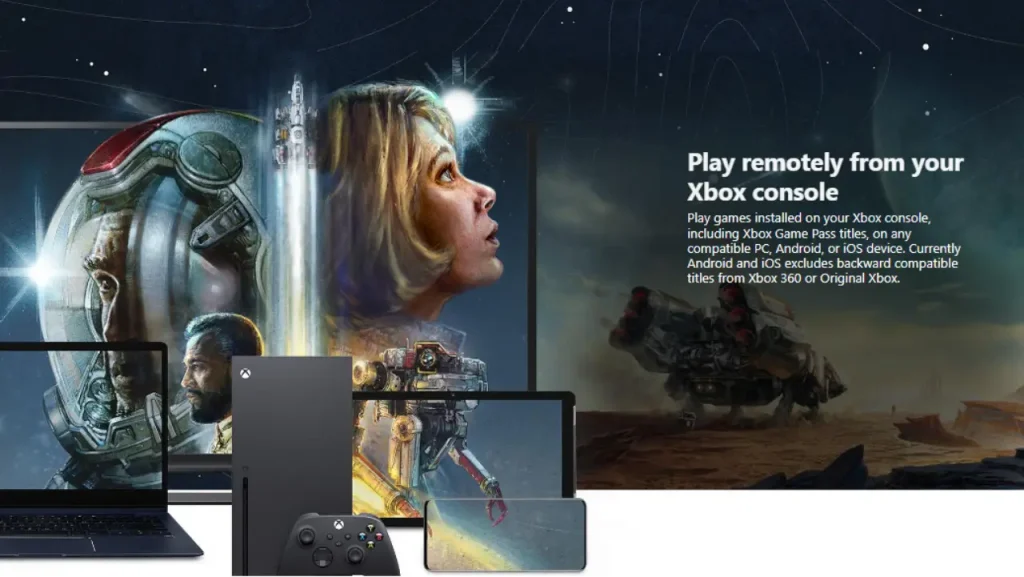
Xbox, created by Microsoft, is a major name in gaming, offering consoles, apps, and streaming services. It’s now the second-biggest gaming brand after PlayStation.
Indeed, playing games on a Windows PC is often smoother than playing an Xbox App On Mac.
Even though Macs have great processors, displays, and graphics, Windows is generally preferred for gaming because it supports Xbox Play Anywhere.
This means Windows users can easily play Xbox games, while Mac users often need extra software to do the same.
It might seem a bit unfair, but keep in mind that most desktop computers (76%) run Windows, so game developers design and optimize their games for this popular operating system.
But don’t worry—playing Xbox games on a MacBook isn’t impossible or too hard to set up. Keep reading for some of the best ways to play Xbox App games On Mac.
What Do You Need To Play Xbox Games on Your Mac?
Ready to play on Xbox App On Mac? Here’s what you need:
1. Good Network Connection: Your Mac should be connected to a speedy 5 GHz WiFi network or have at least 10 Mbps if you use mobile data.
2. Xbox Controller: Grab an Xbox controller that works with Bluetooth. This can be the Xbox Wireless Controller (Model 1708), Xbox Elite Wireless Controller Series 2, Xbox Adaptive Controller, Xbox Wireless Controller Series S, or Xbox Wireless Controller Series X.
3. Xbox Live Account: You’ll need an Xbox Live account to sign in to the Xbox app on your Mac and connect to your Xbox console.
4. Compatible Mac: Make sure your Mac meets the basic system requirements for gaming.
How To Play Xbox Games on Mac?
Ready to dive into Xbox App games on your Mac? Here’s a simple guide to get you started:
1. Xbox Cloud Gaming
Xbox Cloud Gaming lets you play your Xbox games directly from the cloud, so you don’t need an Xbox console. You can access the Xbox Game Pass and play games on your Mac with ease. Here’s how:
> Open a Web Browser
Go to Xbox Cloud Gaming on your Mac.
> Sign In
Click the sign-in button in the top right corner and enter your Xbox Live login details.
> Connect Your Xbox Controller
You’ll need an Xbox controller to play. Make sure it’s paired with your Mac:
(i) Turn on Bluetooth: Go to your Mac’s settings and enable Bluetooth.
(ii) Prepare the Controller: Press the Xbox button to turn it on, then hold the Bluetooth pair button to start pairing.
(iii) Pair the Controller: On your Mac, go to System Preferences > Bluetooth. Find your controller in the list and click to connect.
> Start Playing
Once everything is set up, launch the game you want to play from the Xbox Cloud Gaming page and enjoy!
> Quit the Game
To exit, click on the menu bar, then the three dots in the upper left corner, and select “Quit Game.”
Note: You need an Xbox Game Pass Ultimate subscription to use Xbox Cloud Gaming on your Mac.
To know more, you can visit the Xbox Official Support page.
2. Stream Xbox Games To Mac with OneCast
OneCast is a cool app that lets you stream Xbox games right to your Mac. Here’s how to set it up:
> Download and Install OneCast
Start by heading to OneCast. You can choose to start a “Free Trial” to test it out or click “Buy Now” if you’re ready to purchase. Once the download is done, open the OneCast.dmg file to install it on your Mac.
> Set Up OneCast
Open OneCast after it’s installed. Click “Register Xbox One” to begin the setup process. You’ll need to log in with your Xbox Live and Microsoft accounts. After that, click “Continue” and then “Connect” to link your Xbox with OneCast.
OneCast offers a 14-day free trial, so you can see if you like it before buying the full version, which costs $19.99.
Note: Make sure your home WiFi is strong and reliable for the best streaming experience. If your Xbox controller is too far from your console for a good connection, you can connect it directly to your Mac via Bluetooth. Just click the Bluetooth icon on your Mac, find your controller in the list, and select it to pair.
3. Run Windows on Your Mac
Running Windows on your Mac might be a bit more involved when it comes to getting Xbox App On Mac, but it opens up new possibilities for installing and using apps and games that aren’t available on macOS. If you’re ready to dive in, it’s worth the effort.
Parallels Desktop is a popular tool that lets you run Windows on your Mac. Here’s a simple guide to get you started:
> Download and Install Parallels Desktop
(i) Get the Installer: Go to the Parallels website and download the installer.
(ii) Install the App: Open the .dmg file you downloaded and click “Install”.
(iii) Agree to the Terms: Read the Software License Agreement and click “Accept.”
(iv) Finish Installation: Enter your Mac’s password to complete the installation.
> Set Up Windows
(i) Open Parallels Desktop: Once installed, Parallels Desktop will notice that you don’t have any virtual machines set up.
(ii) Install Windows: Parallels will offer to download and install Windows 10 for you. Just click “Install Windows” to start the process.
With Windows running on your Mac via Parallels Desktop, you’ll be able to play Xbox games and use other software that’s not available on macOS.
Video Guide To Download Xbox App On Mac
Conclusion
Getting the Xbox app on a Mac isn’t as simple as it is on Windows or Xbox consoles, but it’s doable with the right steps.
You can play Xbox App games on your Mac by using Xbox Cloud Gaming through your browser, using third-party apps like OneCast for streaming, or by running Windows on your Mac with Parallels Desktop.
These methods help you bring Xbox App gaming to your Mac, whether you want to stream games directly, access Windows apps, or try other gaming solutions.
By following the tips in this guide, you can enjoy Xbox Game Pass and all its features on your Mac. Happy gaming!
FAQs: Xbox App on Mac
No, you can’t download the Xbox app directly on a Mac. However, you can still access Xbox features by using Xbox Cloud Gaming in your web browser or by using third-party apps like OneCast. Another option is to run Windows on your Mac with software like Parallels Desktop to use the Xbox app.
Xbox Cloud Gaming lets you stream Xbox games directly to your Mac through a web browser. Just go to the Xbox Cloud Gaming site, sign in with your Xbox Game Pass Ultimate account, and pair your Xbox controller via Bluetooth. This way, you can play Xbox games without needing to download the Xbox app.
OneCast is a third-party app that streams Xbox games from your console to your Mac. Download and install OneCast, then follow the setup steps to link your Xbox console. You’ll be able to stream and play your Xbox games on your Mac.
To run Windows on your Mac, you can use Parallels Desktop. Download and install Parallels, then follow the instructions to set up Windows. Once Windows is running, you can download the Xbox app from the Microsoft Store and use it as you would on a Windows PC.
Yes, Xbox Cloud Gaming is included with Xbox Game Pass Ultimate, which often offers a free trial for new subscribers. OneCast also has a 14-day free trial so you can try it out before buying the full version. Check their websites for the latest offers and details.
You are reading this blog on haccker.
