

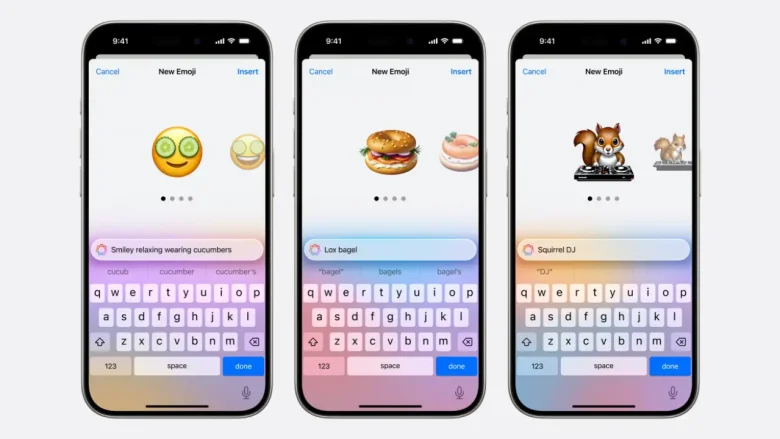
Apple’s latest innovation, Apple Intelligence Genmoji, lets you create custom emojis on iOS 18! This exciting feature enhances personalization with advanced AI technology. If you’re curious about how to use Genmoji and how you can create your custom emojis, this guide has you covered.
Plus, while you’re exploring iOS 18, you might also want to know how to find your favorite photos more easily—it’s a great way to complement your new emojis! Get ready to take your emoji game to the next level with Genmoji!
What Is Genmoji?
Genmoji is one of the coolest features of Apple Intelligence in iOS 18, allowing you to create custom emojis with the help of artificial intelligence. This fun combination makes it super easy to design unique emojis that match your style, adding a fresh twist to your messaging experience.
Currently, Genmoji is only available on the iPhone 15 Pro, iPhone 15 Pro Max, iPads, and Macs with M1 chips or newer. Unfortunately, it won’t work on the iPhone 15, 15 Plus, or older models, which is a bummer for those users.
How Genmoji Works To Create Custom Emojis In iOS 18?
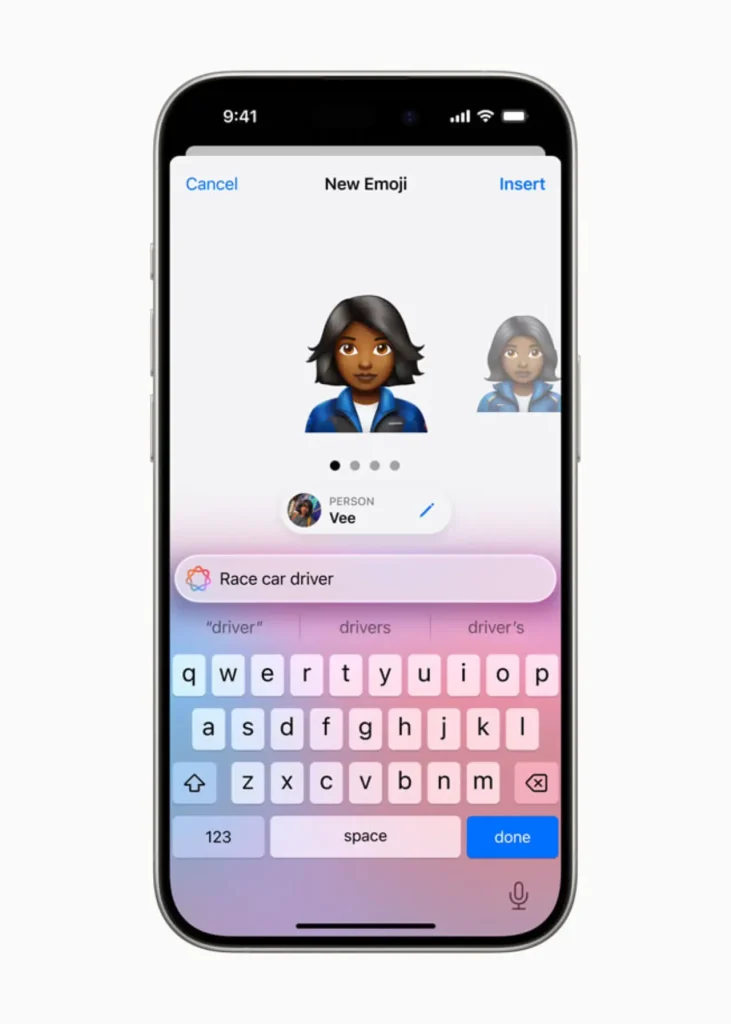
Creating your own Genmoji is super easy! Just give it a description of what you want, like “a rabbit eating carrots” or “a Superman avatar.”
The system will then come up with different emojis based on your idea, and you can choose the one you like best. This is how you can create your own customized emojis in iOS 18.
Steps To Acces Genmoji To Create Emojis In iOS 18
Once iOS 18 is out, updating your device will give you access to the fun world of Genmoji, where you can create personalized emojis on iOS 18 like never before!
Step 1: Back It Up
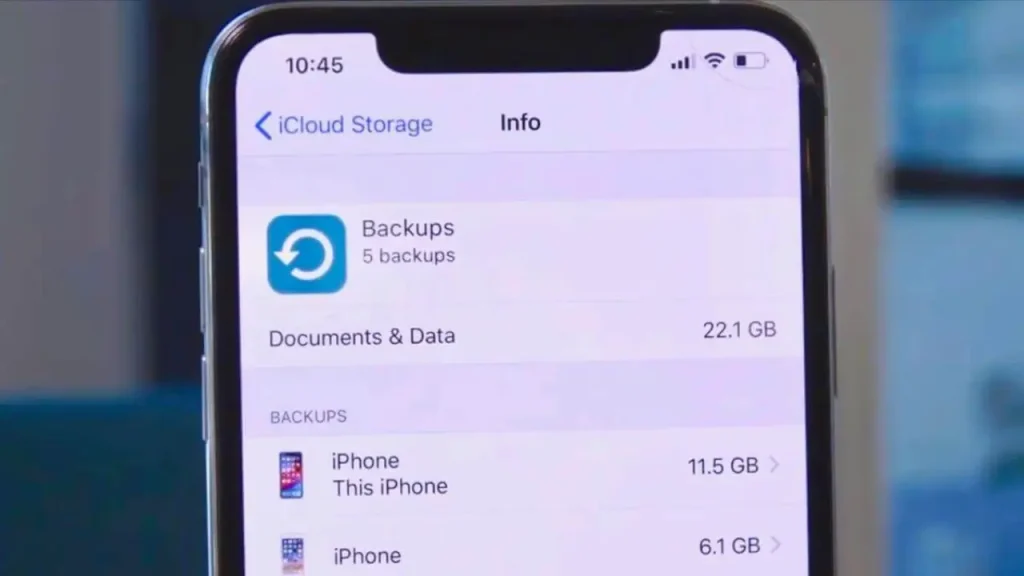
Make sure to back up your iPhone to iCloud or iTunes to keep your data safe.
Step 2: Go to Settings
Open your Settings and navigate to General > Software Update.
Step 3: Download & Install
Tap on the update and let your iPhone do the work. You’ll need to enter your passcode.
Step 4: Restart & Enjoy
After your phone restarts, you’ll be all set with iOS 18 and ready to start using Genmoji!
Steps To Create Custom Emojis Using Genmoji In iOS 18
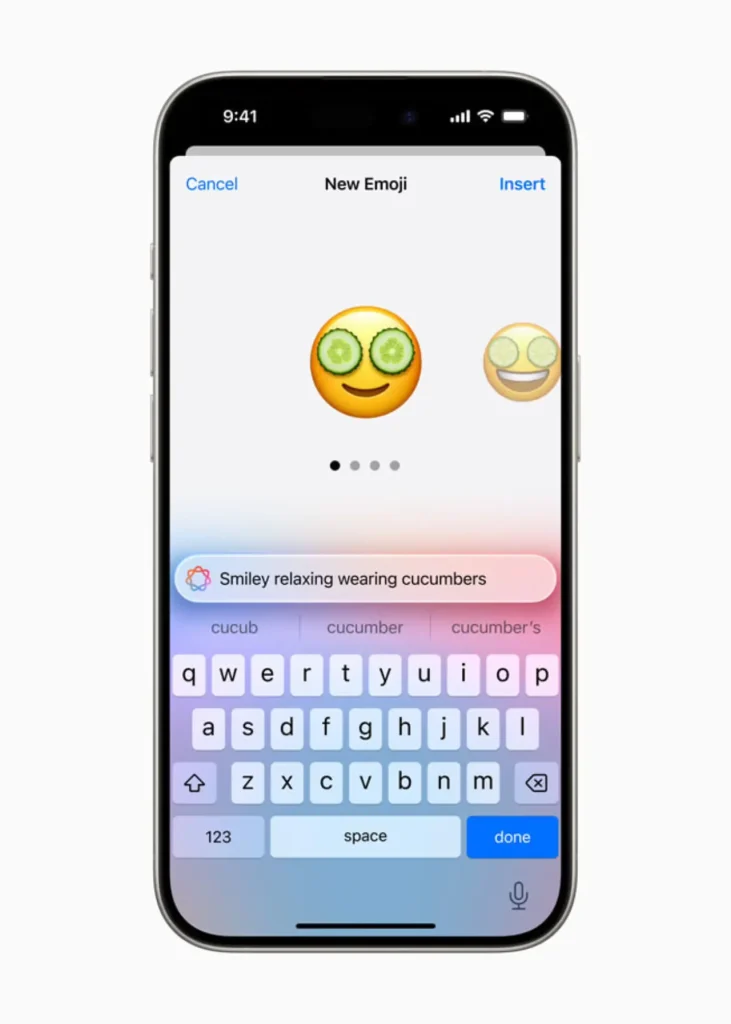
Creating custom emojis is a breeze with the Messages app on your iPhone. Here’s a simple step-by-step guide.
Step 1: Open Messages
First, open the Messages app. You can start a new message or go into an ongoing chat.
Step 2: Access the Emoji Keyboard
Press the emoji icon to open the keyboard.
Step 3: Find Genmoji To Create Custom Emojis In iOS 18
Look for the new Genmoji tab—it should be easy to find!
Step 4: Describe Your Emoji
Type a description of the emoji you want. Get creative! For example, you could say, A pink flamingo with tap-dancing shoes.
Step 5: Create Your Emojis In iOS 18
After you enter your description, a prompt will pop up asking you to Create a new emoji. An oval bubble will appear, showing that it’s working on your Genmoji.
Step 6: Choose Your Favorite
In a few seconds, you’ll see several options for your new emoji. Swipe through them and pick the one you like best.
Step 7: Send It
Once you’ve chosen, tap Insert and share your cool new emoji with everyone!
Video Guide To Create Emojis On iOS 18
Conclusion
The introduction of Apple Intelligence Genmoji is a game-changer for digital communication! With iOS 18, you can create your own custom emojis, making your messaging experience more personal and expressive.
If you’re interested in learning how to use Genmoji or when it will be available, this feature is set to change how we connect.
If you found this blog helpful, please like and share it with your friends! And if you got any doubts or thoughts, drop a comment below—I’d love to hear from you!
FAQs
1. How do I find the Genmoji feature on iOS 18?
To find Genmoji, just open the Messages app, tap the emoji icon, and look for the new Genmoji tab. You can start creating your custom emojis from there!
2. What kind of descriptions can I use for my emojis?
Get as creative as you want! Simply type a description of the emoji you’d like, like “a cat wearing sunglasses” or “a rainbow unicorn.” The more details you include, the better!
3. How long does it take to make a custom emoji?
It only takes a few seconds for the system to create your emoji based on your description. You’ll see a message letting you know it’s working on it.
4. Can I change my custom emoji after it’s made?
Right now, you can’t edit a generated emoji. However, you can always create a new one by entering a different description if you want to try again.
5. Is Genmoji available on all iPhone models?
Genmoji is only available on certain devices, like the iPhone 15 Pro, iPhone 15 Pro Max, and some iPads and Macs with M1 chips or newer. Unfortunately, it won’t work on older iPhone models.
You are reading this blog on info hacker.
