

Today’s blog will explore how to turn on the speedometer on Google Maps on iPhone. If you’ve ever wanted a quick way to check your speed while driving, enabling the speedometer in Google Maps is a great solution.
It helps you track how fast you’re going and ensure you stay within the speed limits, which is great for safety.
While we’re on the topic of enhancing your iPhone experience, you can also check how to enable Apple Intelligence in iOS 18, which brings smarter features to your device.
We’ll guide you through the simple steps to turn on the speedometer, so you can start using these features on your trips and make your driving a little smoother and safer! Let’s get started!
What Is Google Maps Speedometer For iPhone?
Google Maps is adding a speedometer and speed limit indicator to iPhones, a feature already on Android. This update will show your current speed and the speed limit right on your iPhone screen.
The speed limit indicator changes color to show how close you are to the limit, helping you avoid speeding tickets.
This new feature is being rolled out worldwide and will soon be available to all iPhone users. To activate it, tap your profile picture in Google Maps, go to Settings > Navigation > Driving Options.
Note that this speedometer is for informational use; rely on your car’s speedometer for accuracy.
Adding these features to Google Maps may attract iPhone users from Waze and Apple Maps. Google introduced the speedometer and speed limit features to Android in 2019 and has since added road hazard reports.
Despite owning Waze, this update could make Google Maps more appealing.
How Does Google Maps Speedometer Work For iPhone?
Google Maps for iPhone now includes a speedometer feature to help you keep track of how fast you’re going and the speed limits on your route. Here’s how it works:
Google Maps for iPhone displays your current speed on the screen during navigation. This speed is displayed in either miles per hour (mph) or kilometers per hour (km/h), depending on where you are. It also shows the speed limit for the road you’re on.
The speed limit indicator on Google Maps for iPhone turns green when you’re within the limit and red if you’re speeding, giving a clear cue to slow down.
Just remember, while the Google Maps speedometer is handy for iPhone users, it’s best to rely on your car’s built-in speedometer for the most accurate speed readings.
Overall, this feature is designed to make driving safer and help you avoid speeding tickets by keeping you informed about your speed and the speed limits on your route.
Steps To Turn On The Google Maps Speedometer On An iPhone?
Here’s a quick guide on how to turn on the speedometer in Google Maps on your iPhone to keep tabs on your driving speed effortlessly.
1. Open Google Maps
Begin by launching the Google Maps app on your iPhone. Just tap the app icon to get started.
2. Access Your Profile
Check the top right corner of the screen and tap your profile picture. This will open a menu.
3. Go to Settings
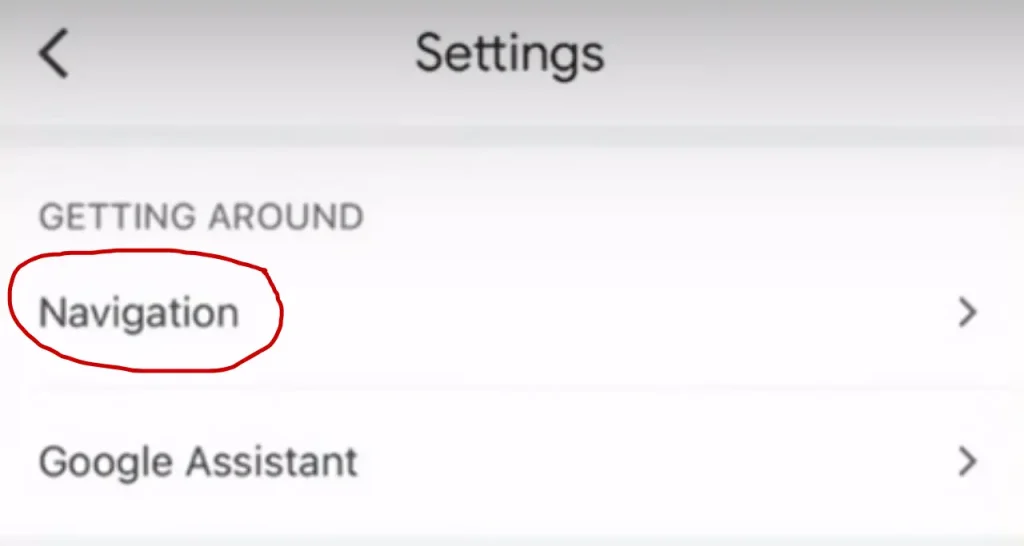
From the menu, select “Settings”. This will take you to the settings page where you can adjust various features.
4. Find Navigation Settings
In the Settings menu, scroll down and choose “Navigation”. This will show you options related to navigation settings.
5. Enable the Speedometer
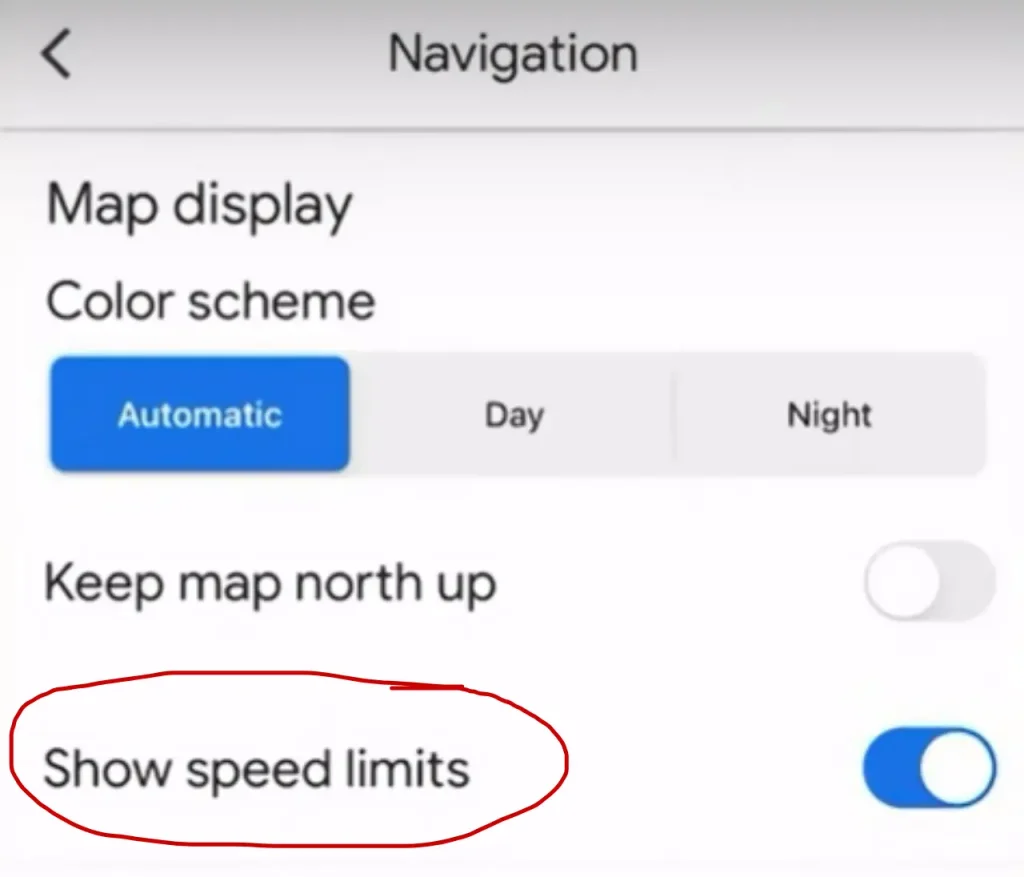
Scroll down until you find “Map Display” and look for the option labeled “Show Speed Limits”. Turn this option on. This will display your current speed along with the speed limits on the map.
Note: This feature might not be available everywhere. If you don’t see the option, it might not be supported in your location.
Once you’ve turned on the speedometer, Google Maps will now show your speed on the map on your iPhone as you drive.
Steps To Turn On The Speed Limit Warnings In Google Maps Speedometer on iPhone?
Need a hand keeping track of speed limits? Here’s how to set up speed limit warnings in Google Maps Speedometer on your iPhone.
Step 1: Open Google Maps
Begin by launching the Google Maps app on your phone.
Step 2: Access Your Profile
Tap on your profile picture at the top right of the screen to open the menu.
Step 3: Open Settings
From the menu, choose “Settings” to access the app’s settings.
Step 4: Navigate to Navigation Settings
Look for “Getting Around” in the settings and tap on “Navigation”.
Step 5: Enable Speed Limit Warnings
Scroll down to find “Show Speed Limits” and turn it on. This setting will display the speed limits on the map as you drive.
Step 6: Check Speed Limits During Navigation
With this setting on, Google Maps Speedometer will show you the speed limits on the map on your iPhone. It won’t give you an audible warning if you exceed the limit, but you’ll see a visual indicator of the speed limit.
Note: Currently, no feature audibly alerts you if you’re speeding, but Google might add this in the future.
Video Guide To Enable Speedometer On Google Maps On iPhone
Conclusion
In summary, turning on the speedometer in Google on your iPhone is easy and adds a useful layer to your driving experience.
Just follow a few simple steps – go to Settings, find Navigation, and switch on the speedometer feature and you’ll be able to see your speed and the speed limit right on your screen.
This helps you stay within speed limits and avoid tickets, making your driving safer. Keep in mind that while Google Maps gives you a helpful visual cue, your car’s speedometer is still the best for precise speed readings. With this feature, your drives can be both smoother and safer!
If you found this blog helpful, please like and share it with your friends. If you have any questions or need further clarification, leave a comment below—I’d love to hear from you!
FAQs
To turn on the speedometer, open Google Maps, tap your profile picture in the top right corner, go to Settings, then Navigation, and select Driving Options. You’ll find the option to turn on the speedometer feature there.
Google Maps will display your speed in miles per hour (mph) or kilometers per hour (km/h), depending on your location and settings.
Yes, Google Maps uses a color-coded speed limit indicator to alert you. It turns green when you’re within the limit and red if you’re speeding, so you can see at a glance if you need to slow down.
The speedometer feature is being rolled out globally and will be available to all iPhone users. However, it might take a little time to reach everyone depending on your app version and location.
While the speedometer in Google is a helpful guide, it’s best used for informational purposes. For the most accurate speed, you should rely on your car’s built-in speedometer.
You are reading this blog on haccker.
