


Hey folks! Team Builder is making a comeback in EA Sports College Football 25, and it’s better than ever. In this guide, I’ll show you how to get started, customize your team, and bring your creations into the game. Whether you’re a longtime fan of Team Builder or just jumping in for the first time, you’re in for a fun ride. Let’s dive in and start crafting your dream football team!
The Return of Team Builder College Football 25
Remember back in 2009 when your own custom football teams could be created using Team Builder? It’s making a big comeback in EA Sports College Football 25, and it’s now better than ever. Collaborations with creators have been established, extensive Team Builder content has been reviewed, and Chris Markuck, one of the original masterminds behind the feature, has been brought back to lead the improvements.
What’s New with Team Builder College Football 25 EA Sports?

The Team Builder feature has been revamped with three main goals in mind:
1. Expanded Creation Tools: More options to build and personalize your team like never before.
2. Discover & Share: Easier ways to find and share amazing community creations.
3. Celebrating Creators: Showcasing the incredible work of our users and giving them the spotlight they deserve.
Getting Started with Team Builder College Football 25 EA Sports
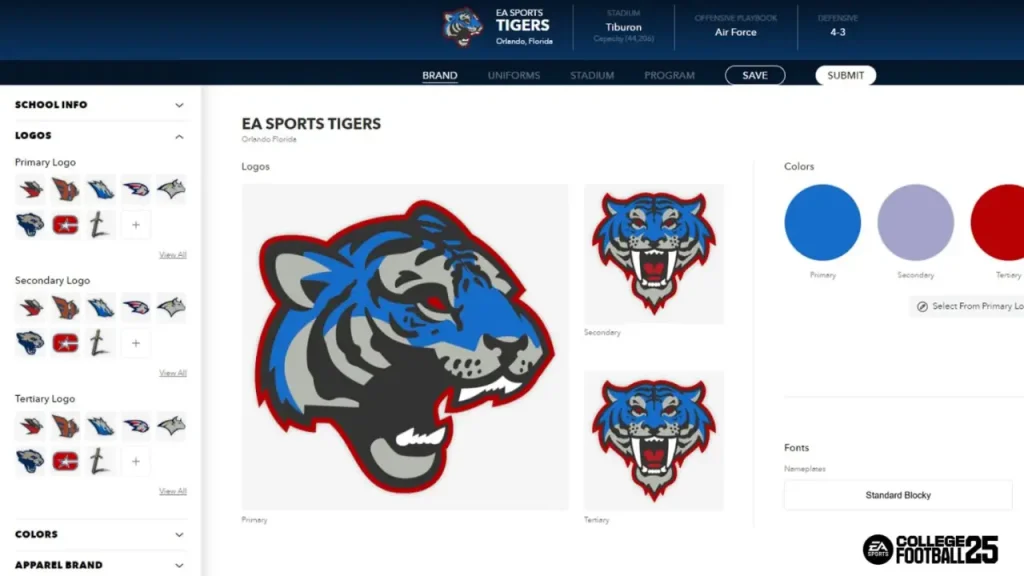
To get started with Team Builder College Football 25 EA Sports, log in with your EA Account and head over to the College Football URL. The main screen will show off top community creations and provide handy search and filter options to help you find exactly what you’re looking for, whether by uniform provider or state.
>Building Your Team’s Identity
To start with Team Builder, click “Start Creating.” Name your team, choose a nickname, upload your logos (primary, secondary, and tertiary), and select your team colors. You can either upload your own logos or use the ones we provide. Pick Nike, Adidas, or Under Armour to influence your team’s gear, fonts, and stitch patterns.
>Uniform Customization: UNI SWAG
With the updated uniform customization, you can create up to 5 different presets in Team Builder, leading to 625 possible uniform combinations. Use the preview area to rotate and zoom in on your designs. Customize helmets, jerseys, pants, and socks with a variety of colors, patterns, and accessories. For more detailed adjustments, custom layers are available.
>Helmet and Jersey Customization
1. Helmets: First, choose the base color and reflectiveness (matte, shiny, or chrome). Then, customize details like the facemask and chinstrap. Add stripes and logos, and adjust their size, placement, and reflectiveness to make the helmet stand out.
2. Jerseys: Choose from options by Adidas, Nike, or Under Armour, each offering unique design features. Add custom layers to include team names or unique designs. Expect additional content to be rolled out throughout the year to keep things fresh.
3. Pants, Socks, and Alternate Uniforms:
- Pants: Add various stripe options and layers to your pants.
- Socks: Customize the oversock, base/undersock, and brand colors to complete your uniform.
4. Alternate Uniforms: Duplicate an existing uniform set and tweak the colors or designs as needed. The “Preview Uniform” feature makes these adjustments easy.
>Designing Your Home Field and Franchise
1. Stadium Customization: Personalize your home stadium by choosing from 134 existing options and renaming it. You can also adjust the crowd’s colors, field type, logos, endzones, and more with custom layers and colors.
2. Franchise Setup: Adjust player attributes and playbooks to match your play style, creating a truly tailored experience.
Also Read : How to download and use custom school in College Football 25
Publishing, Sharing, and Importing Teams In Team Builder College Football 25 EA Sports
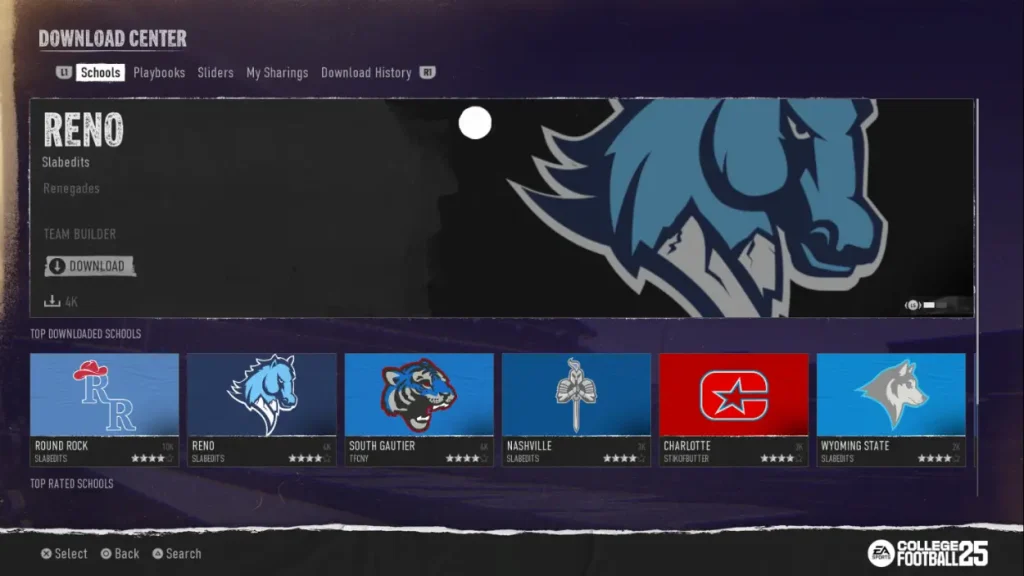
Publishing, sharing, and importing teams in Team Builder adds extra fun by connecting you with other players. You can showcase your custom teams, share them with friends, or bring in teams from others, making the game more interactive and enjoyable.
>Submitting Your Team
When your team is ready, hit submit to publish it. Check out your designs on the Preview Screen before finalizing. Share your creations with the community and explore other user’s designs through the Download Center.
>Importing Teams into Dynasty Mode
You can import up to 16 custom teams into Dynasty Mode, but only in private cloud Dynasties. You’ll have the option to replace existing teams or keep their rosters.
Video Guide To Team Builder College Football 25 EA Sports
Conclusion
Using the Team Builder College Football 25 EA Sports feature lets you design everything from custom uniforms to picking players with specific skills, so you can create the perfect team. It not only makes the game more engaging but also gives you the freedom to try out different strategies and team setups.
Whether you want to build a top-tier team or recreate a beloved classic, Team Builder helps you make your football dream a reality. If you found this guide useful, feel free to pass it along to your friends! And if you have any other tips or ideas, drop a comment below—I’d love to hear from you!
FAQs
To get started with Team Builder College Football 25, go to the main menu and select “Team Builder”. You can then create a new team or tweak an existing one by following the easy on-screen steps.
Absolutely! Team Builder lets you create custom uniforms, logos, and team colors. Use the design tools provided to make sure your team looks exactly how you want it.
In Team Builder, you can browse through a list of available players and choose ones that fit your game plan. You can also modify their skills, positions, and other traits to match your preferred style of play.
Yes, you can! Once you’ve set up your team in Team Builder, you can bring it into other modes like Dynasty or Online Play. This means you can enjoy your custom team in different gameplay experiences and even share it with friends.
If you face any issues or need some guidance, check out the in-game help section or visit the EA Sports support website. You can also look for advice in community forums or social media groups where other players share their tips and solutions.
You are reading this blog on haccker.
