

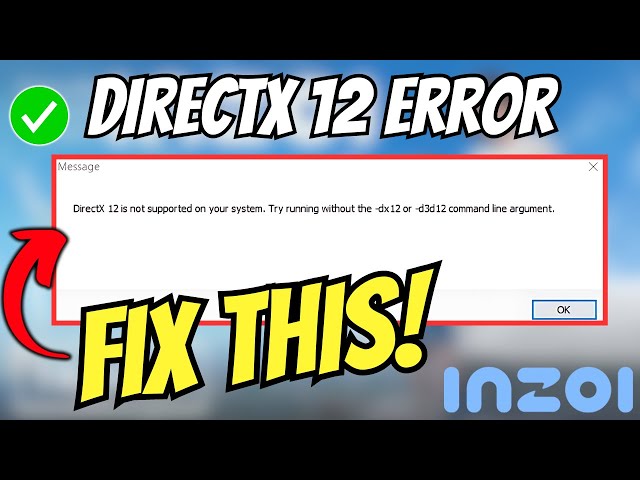
Gamers are you in trouble and finding how to fix inZOI directx12 error? This issue is really very annoying I was in the game and got this error so bad. Let me tell you this error is happening with almost every player. But here is the fix I am going to tell in this guide.
inZOI as we know is a life simulation game developed by Krafton. It allows us to create characters and engage in various simulation activities. Now, we are in trouble enjoying this game let’s troubleshoot it.
How To Fix inZOI DirectX12 Error
Are you struggling with the frustrating “inZOI DirectX 12 is not supported on your system” error? Don’t worry, I’ve got your back! Let’s dive into some tried-and-true solutions that’ll have you back in the game in no time.
1. Reinstall DirectX
First things first, let’s give your DirectX a fresh start. By reinstalling it, we’ll wipe out any pesky outdated, or corrupted files that might be causing trouble. Trust me, this simple step can work wonders for compatibility issues.
2. Update Game Patches
Next up, make sure inZOI is rocking the latest version. Game developers are constantly tweaking things behind the scenes, and often release patches to smooth out DirectX 12 compatibility. It’s worth checking for updates.
3. Verify System Requirements
Now, let’s take a moment to ensure your trusty machine is up to snuff. Double-check that your system meets the minimum requirements for DirectX 12. If it falls short, you might need to consider a hardware upgrade.
4. Force Use of DirectX 11
If DirectX 12 is giving you grief and your system can handle DirectX 11, we’ve got a workaround. You can force inZOI to use DirectX 11 instead. It’s not ideal, but hey, if it gets you playing, that’s what matters.
5. Update Graphics Drivers
Moving on, let’s make sure your graphics drivers are in tip-top shape. Outdated drivers can throw a wrench in the works, especially with newer games that rely on DirectX 12. A quick update could be just what the doctor ordered.
6. Check DirectX Version
Time for a bit of detective work. Use the “dxdiag” command in the Run dialog to sleuth out your current DirectX version. If it’s not DirectX 12, we might need to dig a little deeper.
7. Update Windows
While we’re at it, let’s make sure your Windows OS is up to date. An outdated operating system can be a real party pooper when it comes to supporting the latest software.
8. Check Compatibility Mode
Here’s a sneaky one – verify that inZOI isn’t set to run in compatibility mode for an older version of Windows. This can cause all sorts of DirectX 12 headaches.
9. Contact Support
If you’ve tried everything and that error message is still haunting you, don’t throw in the towel just yet. Reach out to the inZOI support team. They’re the experts and might have some ace up their sleeve to help you out.
Remember, troubleshooting can be a bit of a journey, but stick with it. With a little patience and persistence, you’ll be back to enjoying inZOI before you know it.
Conclusion
We’ve tried to make this guide easy to understand. It should help you fix the annoying “inZOI DirectX12 Error”. We’ve given you several ways to solve the problem and get back to your game. First, try reinstalling DirectX. Then, update your game patches. Also, check if your computer meets the game’s needs.
Don’t forget to update your graphics drivers too. These steps should cover most issues. But if you’re still having trouble, don’t worry. You can always contact inZOI’s support team. They can give you more help for your specific problem.
Remember, fixing errors takes time and patience. But now you have the tools to tackle this DirectX12 error. Keep this guide nearby for future use. We hope you can now enjoy your game with fewer problems.
FAQs: How To Fix inZOI DirectX12 Error
The “inZOI DirectX12 Error” occurs when inZOI has trouble running with DirectX12, often due to compatibility issues, outdated drivers, or hardware limitations. It usually displays error messages indicating DirectX12 support problems.
To reinstall DirectX, download the DirectX End-User Runtime Web Installer from Microsoft’s website, run it, and follow the instructions. This process updates or replaces any corrupted DirectX files, potentially fixing the error.
Open the DirectX Diagnostic Tool by pressing Win + R, typing dxdiag, and hitting Enter. Check the DirectX version and ensure your hardware meets the minimum requirements for DirectX12 as listed in the tool.
If updating drivers doesn’t help, try rolling back to a previous driver version and check for Windows updates. If issues persist, contacting inZOI support may offer additional solutions.
You Are Reading This Guide On Haccker
